2. Follow the steps below when logged in to the uniFLOW Server
a. Backup original behaviours on uniFLOW Server
- Backup the original (Universal) Login Manager and ICARUS Server for Web behaviours on the uniFLOW Server.
- Create a backup of the following ICARUS Script Assemblies (.isa) from:
“..\uniFLOW\WebClient\icarus\packages\”
LMCARDTYPELOGIN.isa
LMPINCODETYPELOGIN.isa
LMUSERNAMEPWDTYPELOGIN.isa
UNIFIEDLOGIN.isa (not available in uniFLOW V5.3 SRx)
WE_SET_WORKFLOW_USER.isa (not available in uniFLOW V5.3 SRx)
b. Implement new behaviours on uniFLOW Server
- Implement the new (Universal) Login Manager and ICARUS Server for Web behaviours on the uniFLOW Server (please ensure to download the files for the correct version as previously detailed).
- Set the Logging Level within the Techsupport Log at http://localhost/pwserver/techsupport.asp to Flow (optional).
- Copy the following ICARUS Script Assemblies (.isa) to:
“..\uniFLOW\WebClient\icarus\packages\install\”
LMCARDTYPELOGIN.isa
LMPINCODETYPELOGIN.isa
LMUSERNAMEPWDTYPELOGIN.isa
UNIFIEDLOGIN.isa (not available in uniFLOW V5.3 SRx)
WE_SET_WORKFLOW_USER.isa (not available in uniFLOW V5.3 SRx)
Note: The “install” folder acts like a hot folder. The files will disappear after a few seconds and are installed automatically.
Copying the above files needs to be done on the uniFLOW server only. The behaviours will be synchronised to the connected RPS (if available) automatically*. The main uniFLOW server will automatically be synchronised with all connected RPSs on the next synchronisation interval. No restart of uniFLOW/RPS services required.
*If the internal Resource Management has been disabled the (Universal) Login Manager files have to be copied to the connected RPS manually. In this case copy the Icarus Script Assemblies to:
“..\uniFLOW Remote Print Server\Web\Icarus\Packages\install\” on all connected Remote Print Servers.
If the Logging Level has been set to Flow you will find a respective message within the log e.g.
“The Script Assembly C:\Program Files (x86)\uniFLOW\WebClient\Icarus\packages\install\USERNAMEPWDTYPELOGIN.isa has been successfully installed.”
Note: Keep in mind to reset the Logging Level to Error (Default) after successful implementation.
c. Save new behaviours
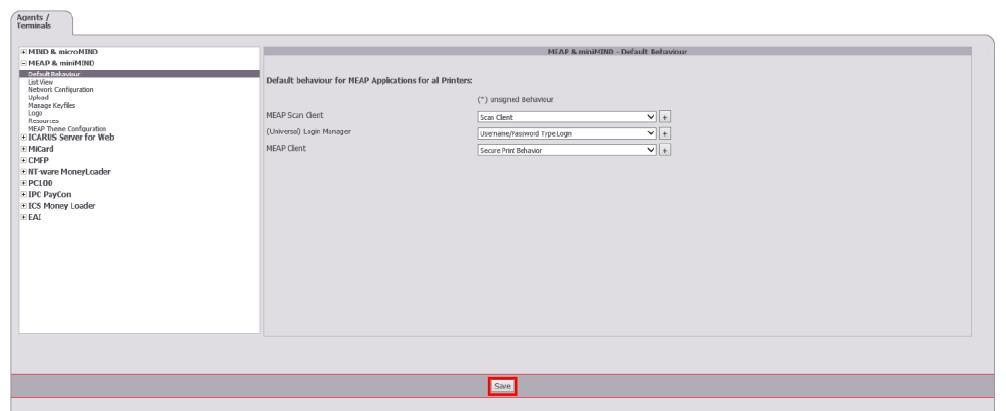
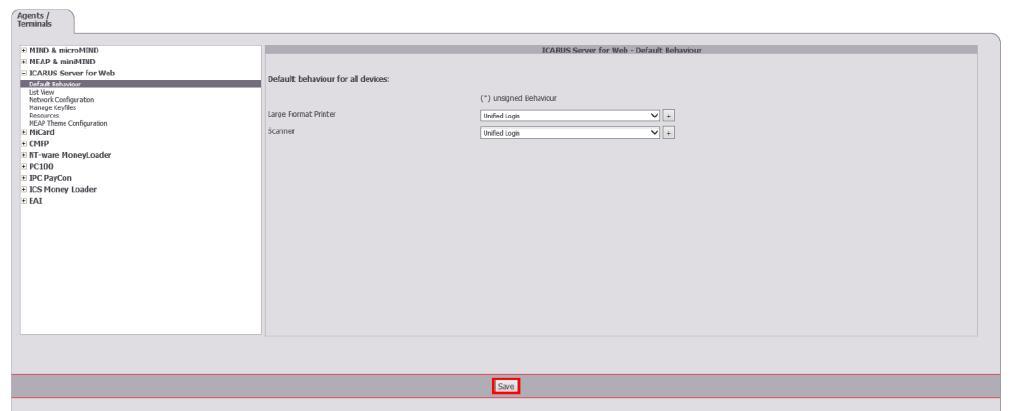
Save the (Universal) Login Manager behaviour configuration in order to initiate a reload of the behaviour on connected devices.
- Open the uniFLOW Server Configuration and navigate to: Connections – MEAP & miniMIND – Default Behaviour. Click on Save.